![Online Laboratory Safety Training and Certificate Upload Guide [Mandatory for Master’s Students in Convergence Software: Required for Graduation] > 가이드(영문)](https://sis.cbnu.ac.kr/assets/images/subvisual/default.jpg)
Student Guide
- 2026-10-19 17:32
Online Laboratory Safety Training and Certificate Upload Guide
[Mandatory for Master’s Students in Convergence Software: Required for Graduation]
Important: Completing the courses without uploading the completion certificate will not count toward this requirement.
Failure to meet this requirement will prevent you from graduating.
You must complete the training over two semesters: 6 courses per semester, for a total of 12 courses.
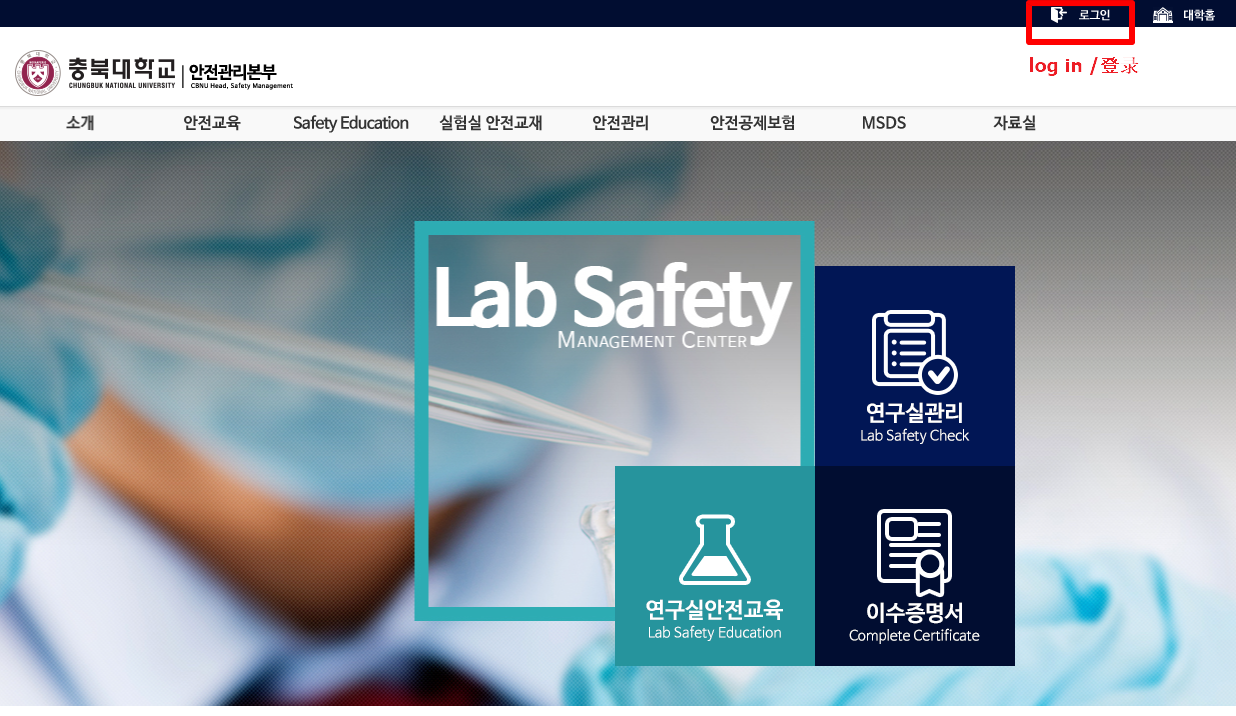
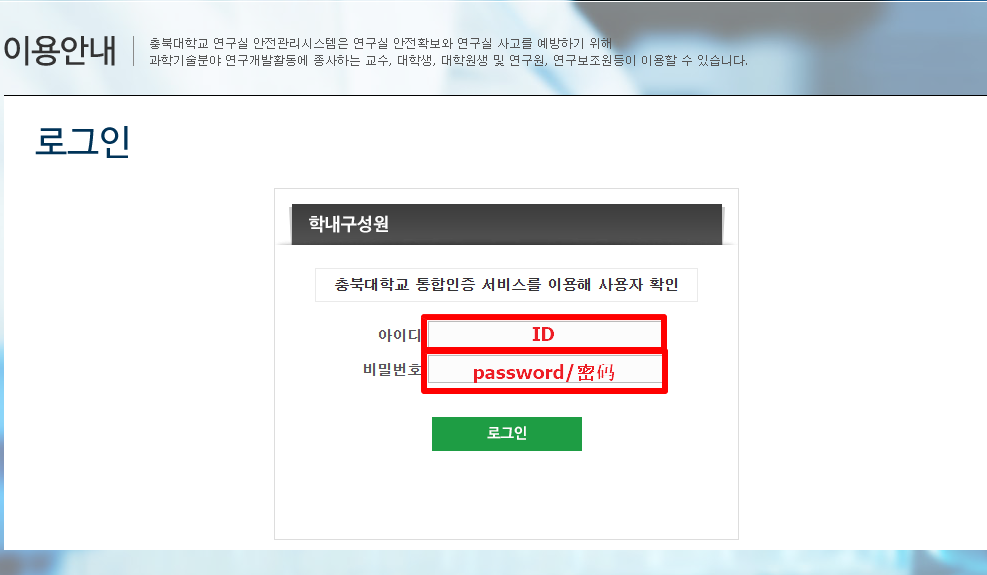
1. Visit the Chungbuk National University Safety Management Headquarters website and log in using your 개신누리 ID and password.
website: https://safe.chungbuk.ac.kr/
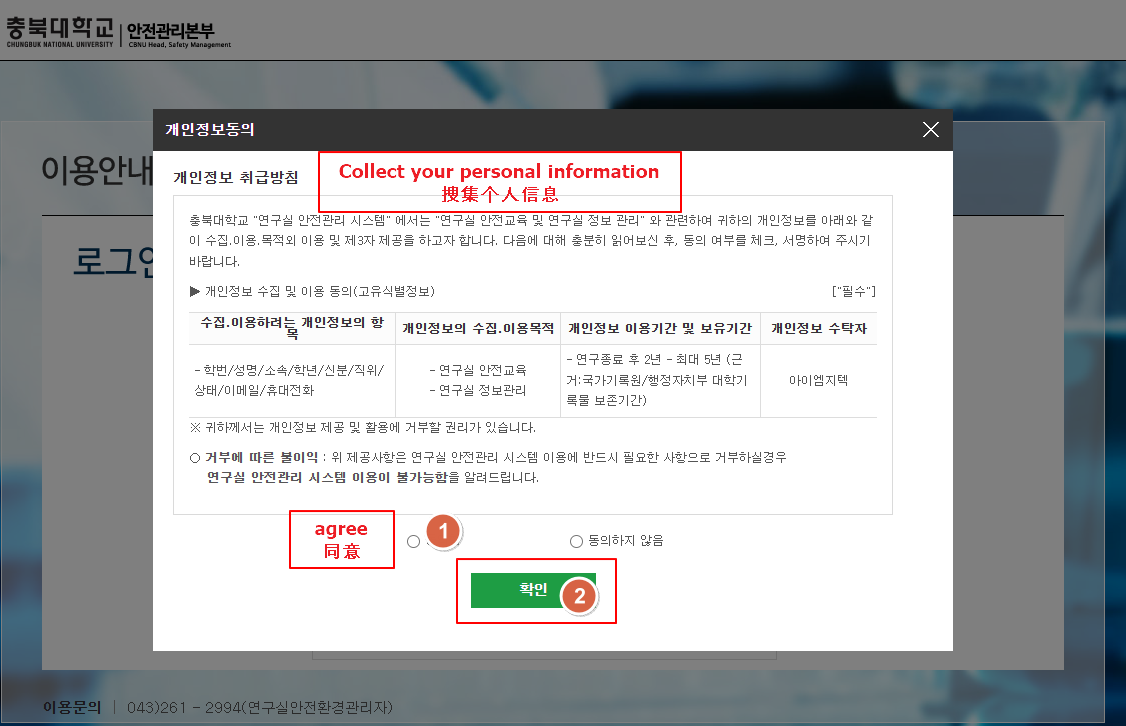
2. Agree to the collection of personal information. You cannot access the courses without providing consent.
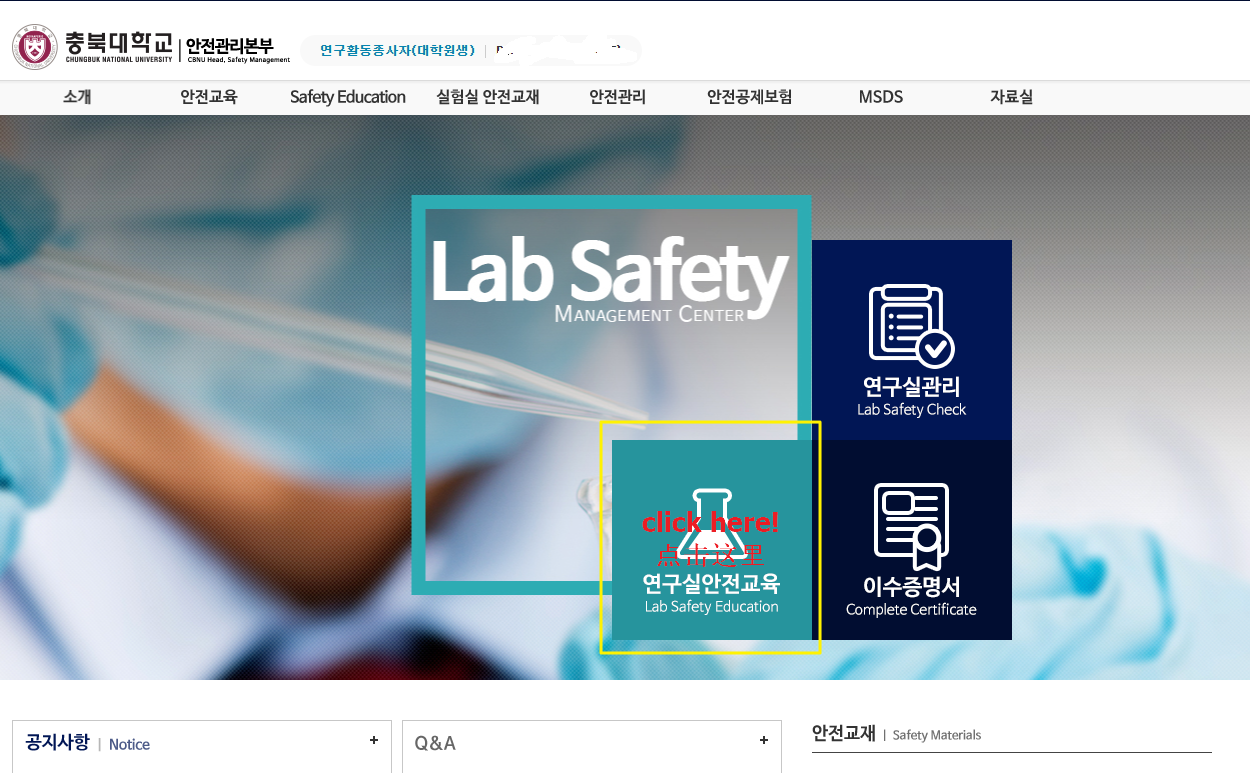
3. After logging in and providing consent, return to the homepage and select 연구실안전교육 (Laboratory Safety Training)
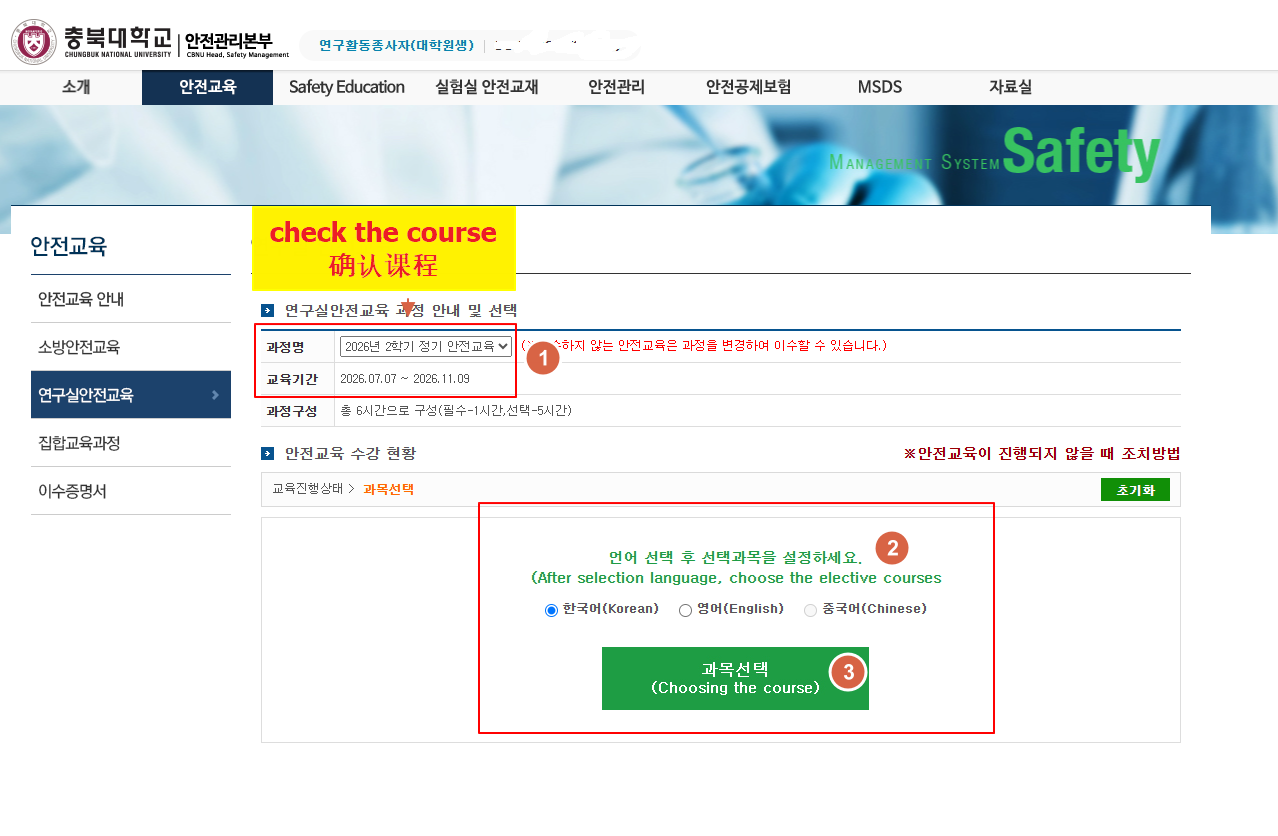
4. Select the courses for the current semester, choose your preferred language (Chinese is currently unavailable), and then select your course subjects.
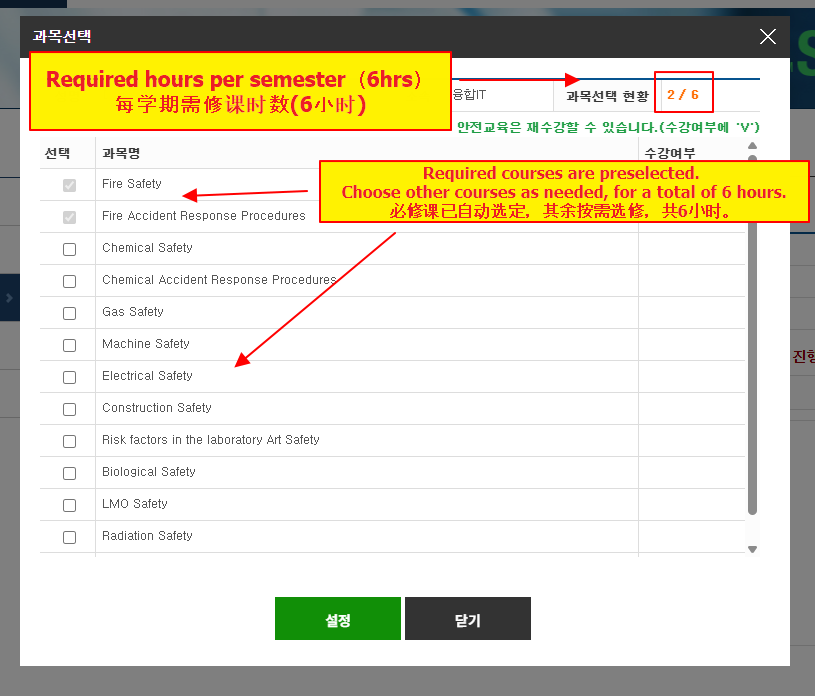
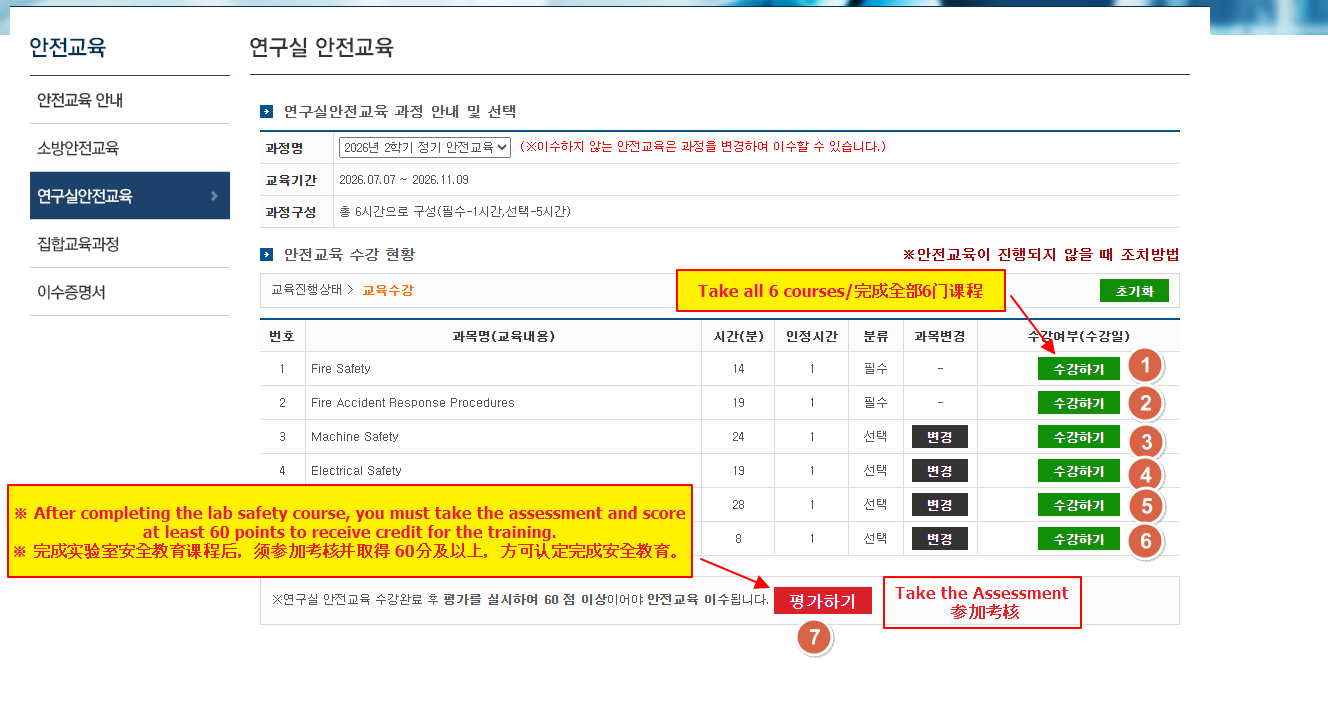
5. You must complete 6 courses each semester. The courses automatically selected by the system are mandatory.
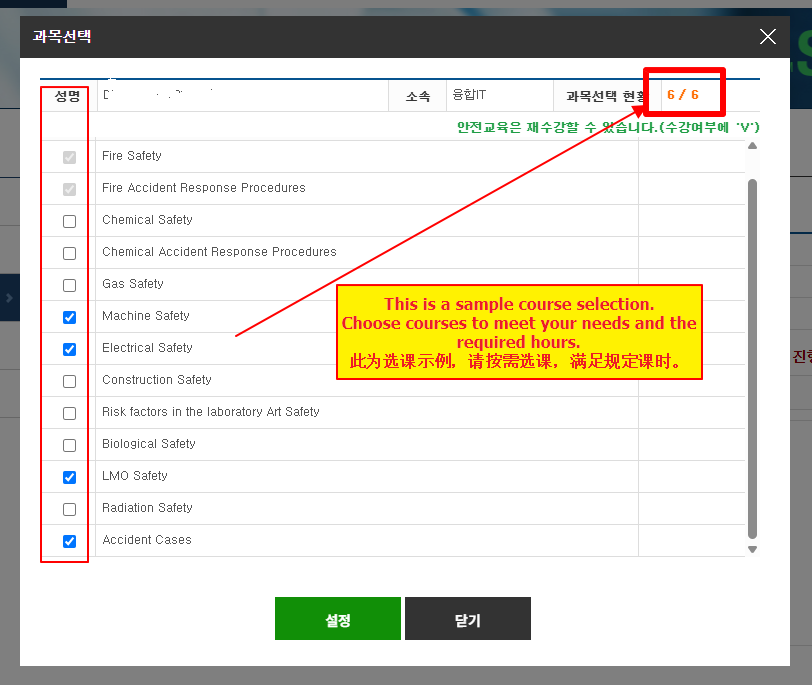
6. Select additional courses according to your needs, bringing the total to 6 courses, including the mandatory courses.
7. Start taking the courses. After completing all courses, you can take the assessment.
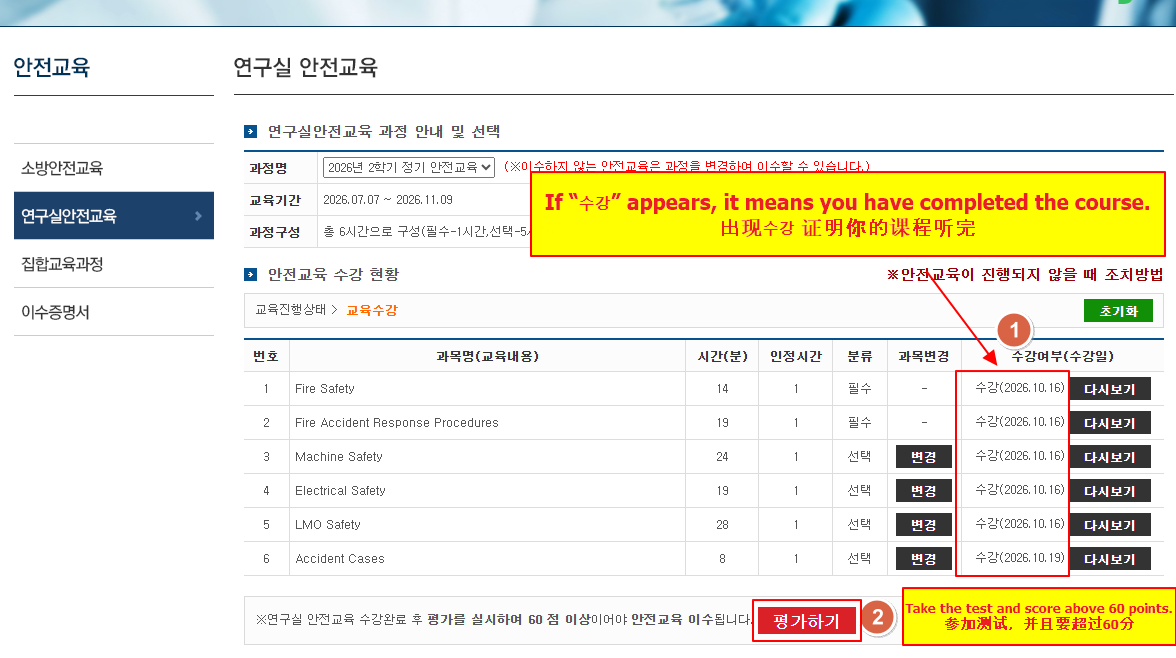
8. When 수강 appears, it indicates that you have finished the course content and can take the test. You must score above 60 to receive an 이수증 (completion certificate).
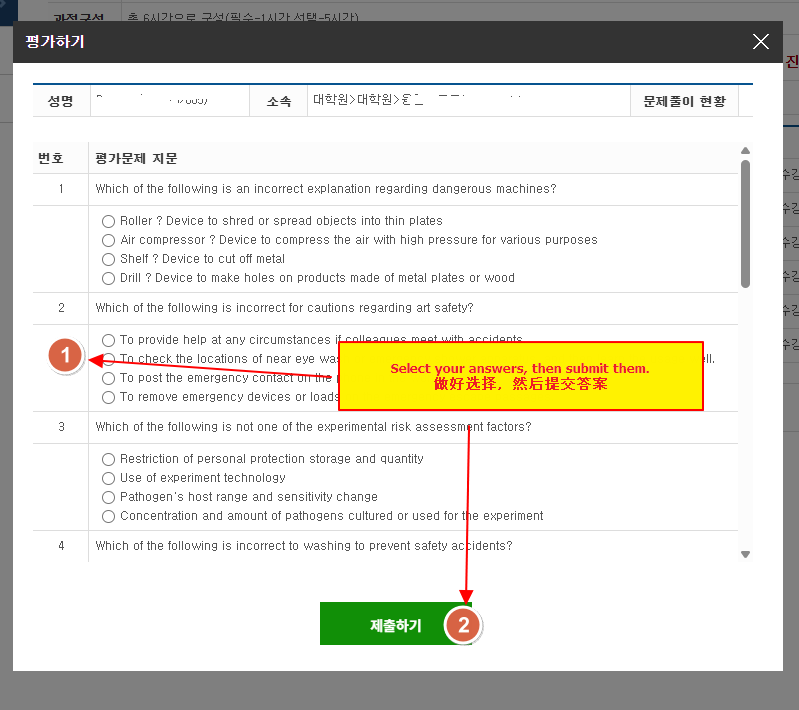
9. Answer the test questions and submit your answers when finished.
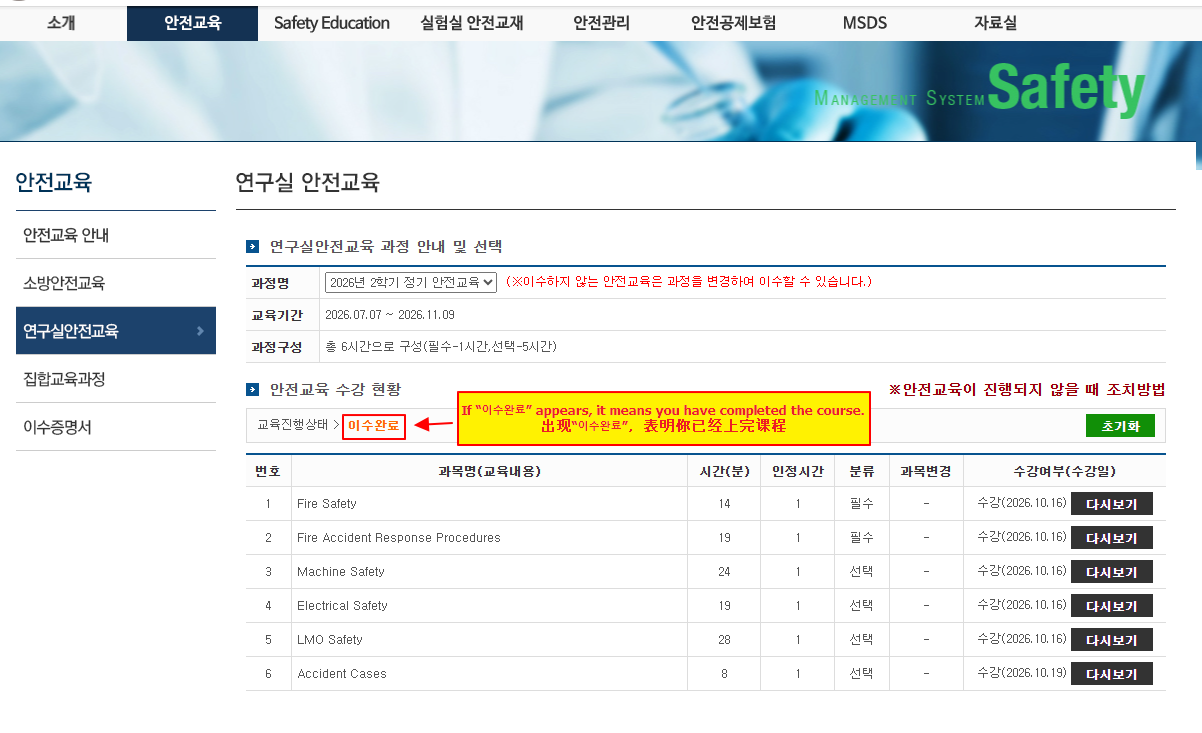
10 After you pass the assessment, 이수완료 will appear on the course page, indicating that you have completed the training and passed the assessment.
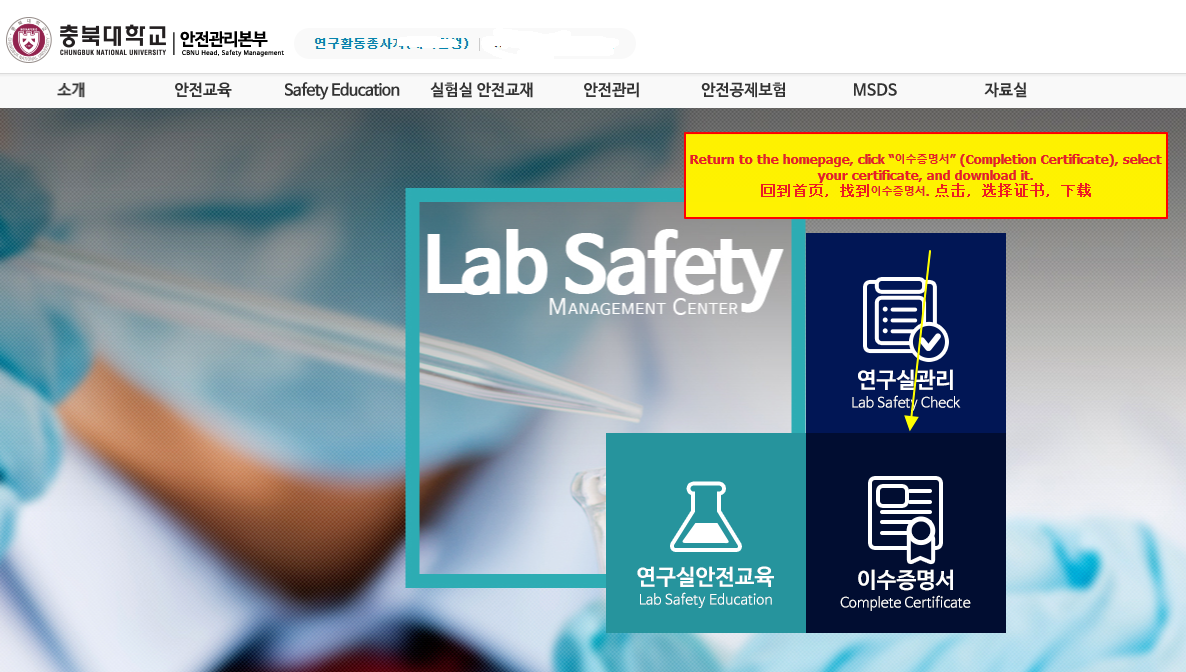
11. Return to the homepage and click 이수증명서 to obtain your completion certificate.
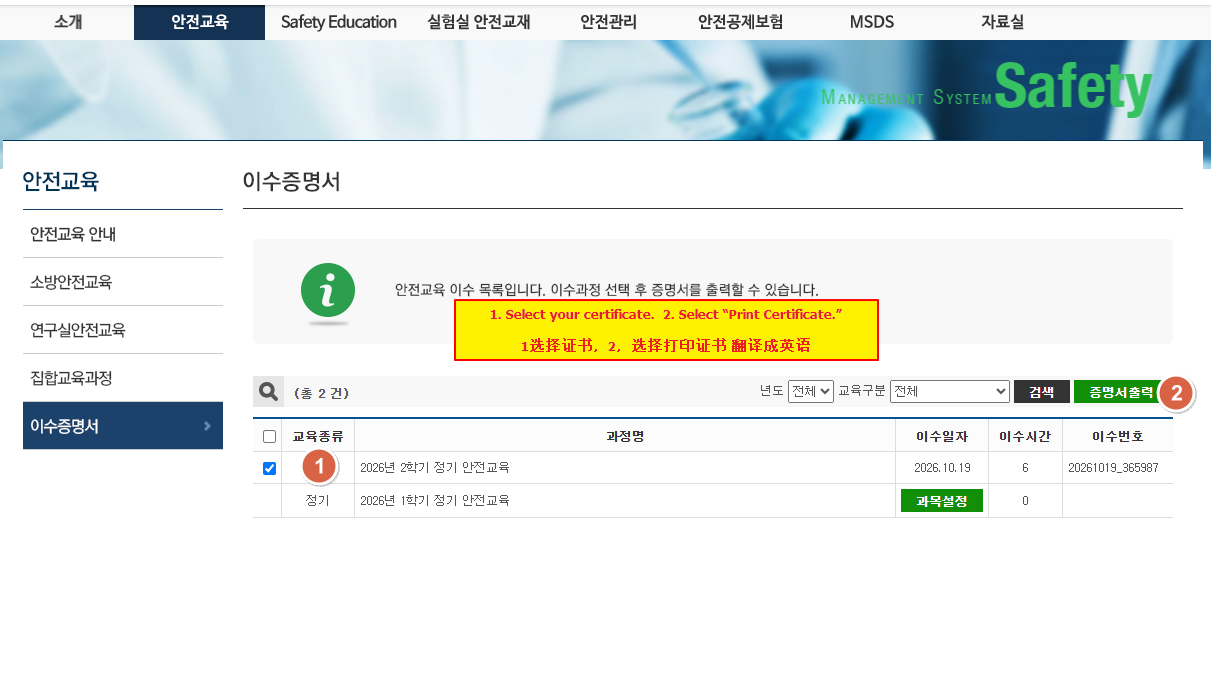
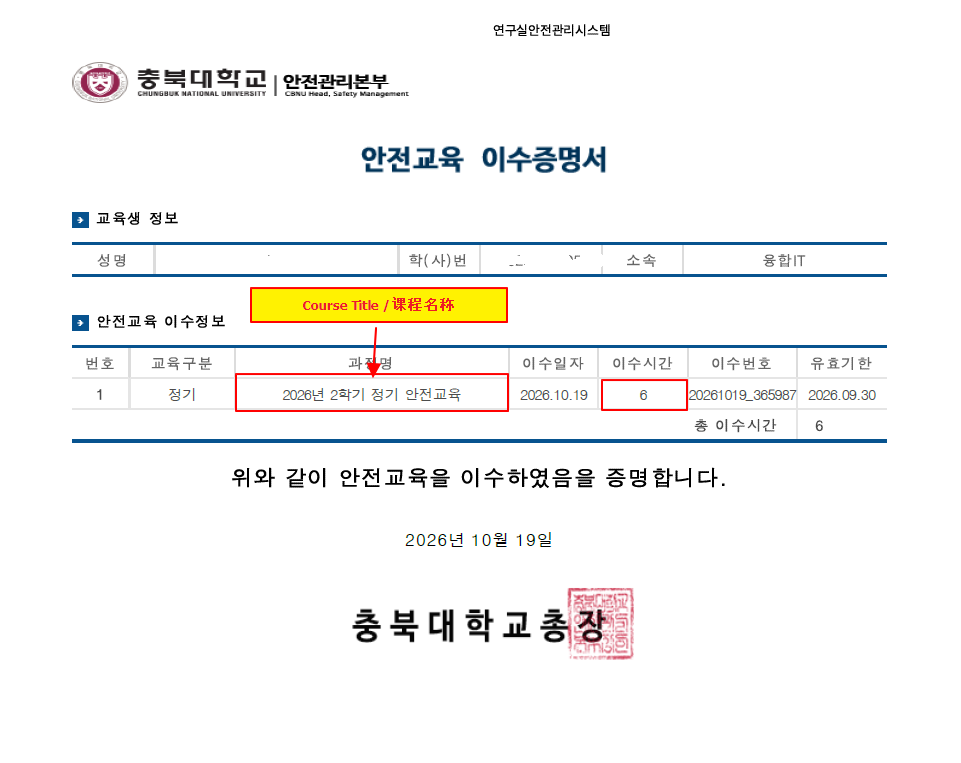
12. Select your certificate, choose Print Certificate, and save it as a PDF file.
13. Log in to 개신누리 and go to the certificate upload page.
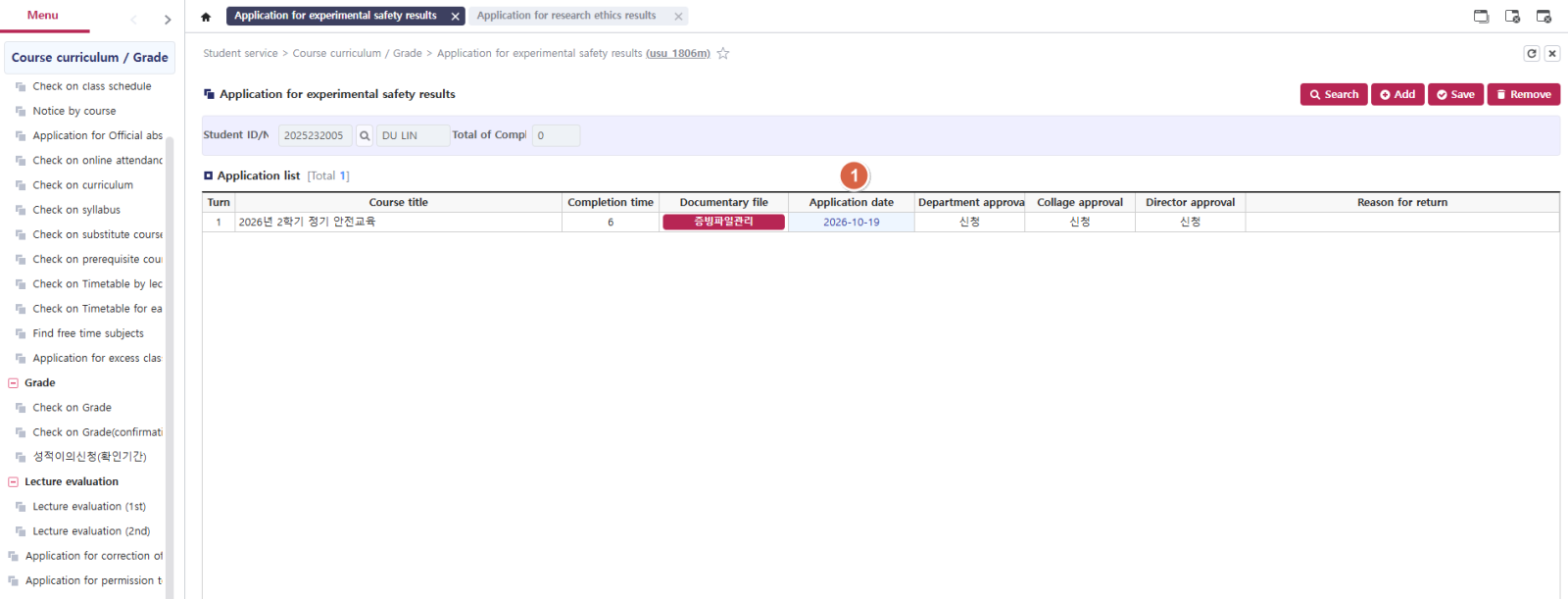
Path: Student Service → Course Curriculum/Grade → Application for Experimental Safety Results
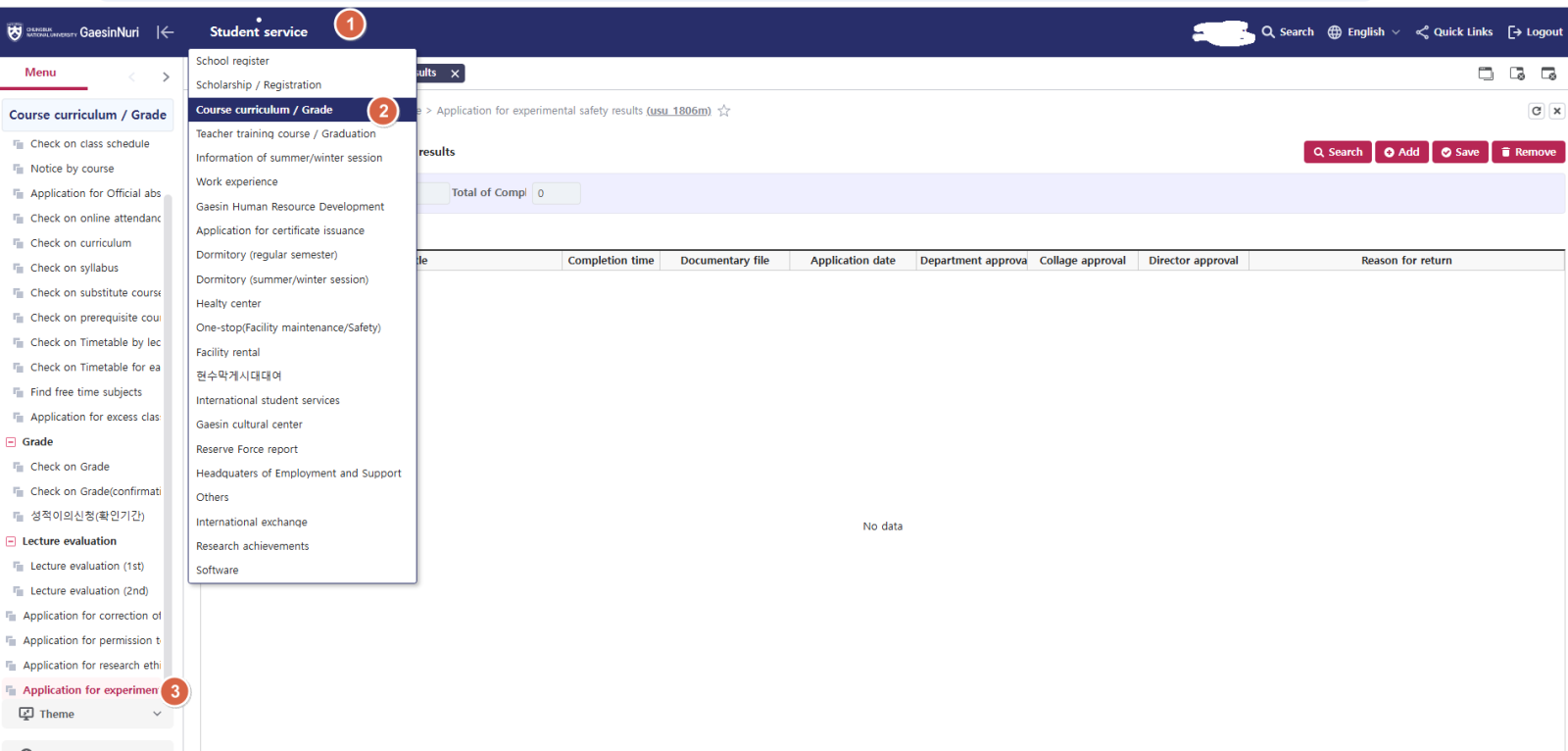
14. Click Add, enter the Course Title exactly as shown on your completion certificate, enter 6 for the training hours(Completion Time), and click Save.
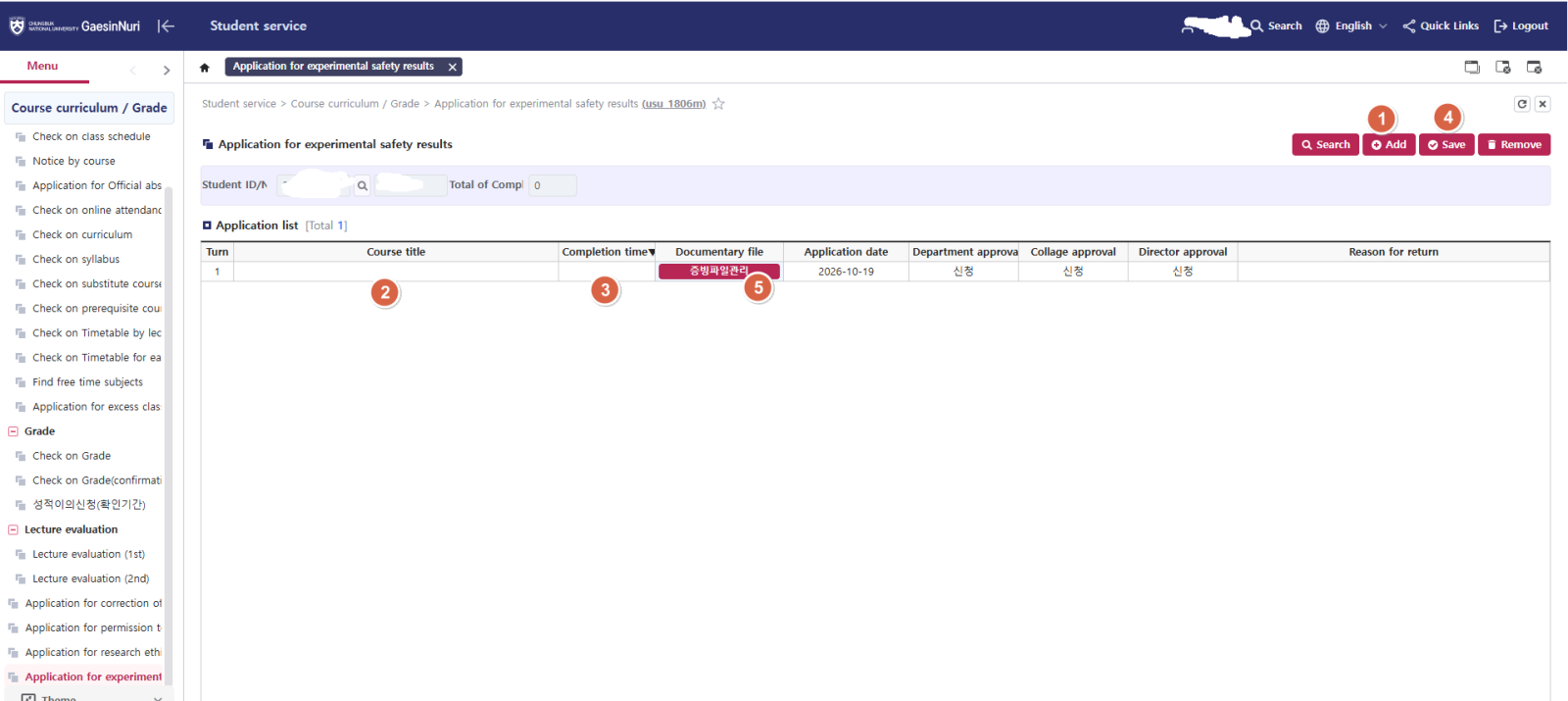
15. Upload your completion certificate.
Path: 증빙파일관리 → Attachments → Select your saved completion certificate PDF → Save
Important: Make sure the file has been successfully uploaded.
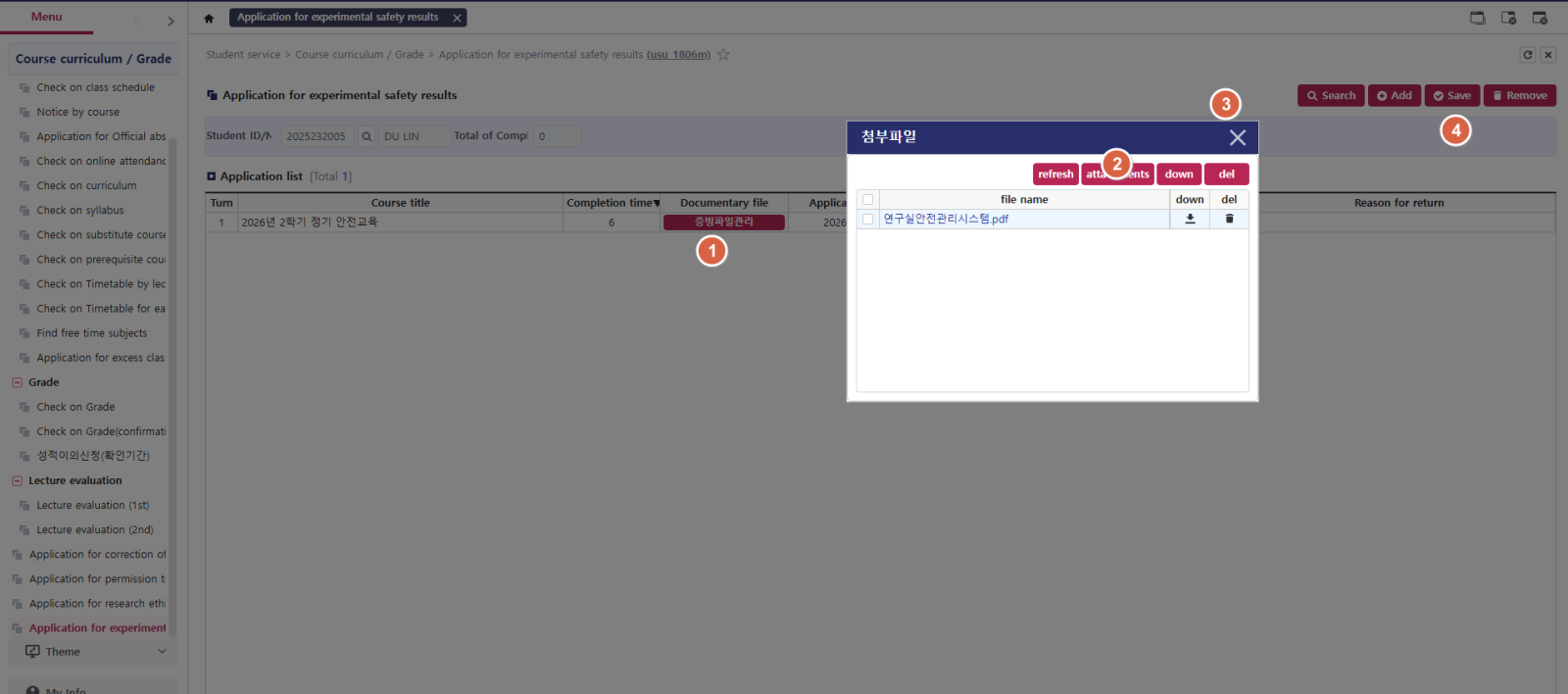
16. Confirm that your application was submitted successfully.
Refresh the page and check Application Date. If a date appears, your application has been submitted successfully.